Setup
The recommended steps for setup are as follows:
- Open Asset Affinity's Core View via the menu bar: Tools → Asset Affinity → Core View
- Dock the Core View somewhere handy. We like to put it in the bottom-right corner of a default Unity layout.
- Follow the steps from the Core View window:
- Configure your settings (see Settings below).
- Click Initialize All Assets. This creates a few links per asset to get you started, using each file's
Last Modifiedmetadata to know what you worked on together.
That's it! From here, as you work, Asset Affinity will be listening to your workflow, and the Core View will naturally become a stronger enhancer to your workflow over time.
Settings
| Row Display Mode | ‘Breathable’ or ‘Compact’. ‘Breathable’ shows the Folder and has more height per row. Compact will show you more context rows at once inside of the Affinity List. |
|---|---|
| Affinity Score as Horizontal Fill | By disabling, you'll view Affinity strengths as a small radial circle with a percentage, rather than as a background fill for the row. |
| Truncate Folder Name from Start | By enabling, long paths will read as ...Folder 5/Folder 6 rather than Folder 1/Folder 2/.... |
| Decay Rate | Higher values mean Affinity strengths decrease more quickly (and disappear faster), where assets are no longer used together. |
|---|---|
| Max Connections (per Asset) | The maximum number of Affinities a single asset may have. The lowest-scoring Affinity is lost if this is exceeded. Choose short, focused lists of only the most recent, strong Affinities, or long lists inclusive of older, weaker ones. |
| Max History Size | The maximum number of events the History will display. Longer lists use slightly more memory, but this is mostly a preference for a longer or shorter list. |
| Track External File Changes | Disabling this means Asset Affinity will only track your connections, rather than file modifications. On a slow machine, this may very slightly improve "Importing Assets" performance. |
|---|---|
| Autosave Interval | Autosave happens as you work. A lower value means more frequent saves; a higher value means less frequent saves. The default is generally fine, but set it higher if you're concerned about small I/O performance costs. |
| Initialize Links (button) | The same operation available in the Setup steps. It creates a few links per asset to get you started, using each file's Last Modified metadata to know what you worked on together. |
| Wipe Data | Erases all data from Asset Affinity. The package restarts from zero data, as if it had just been imported. |
|---|
All Screens
Core View: Affinity Tab
You no longer have to tag favourites or create custom workspaces. Simply open Asset Affinity's Affinity tab and it will show you what you normally work on, alongside whatever you currently have selected.
Filtering & Sorting
The list is self-updating, but there are a few things to notice about the window:
- Asset Type Filtering: filter the Affinity list by asset type using the multi-select dropdown.
- Sort By: sort by Affinity (asc/desc), Asset Name (asc/desc), or Folder (asc/desc).
Quick Actions
Hovering over a row reveals a few helpful buttons:
- Open File: opens the file (behaviour depends on Asset Type).
- Open Location: pings the asset in the Project directory.
- Find References: finds all usages of the asset (references, not Affinity links).
- Pin Link: pins the asset in the selected asset's context. It will always appear at the top when you return to the same asset, and is immune to decay while pinned.
- Remove Link: manually deletes the link.
Core View: Recent Tab
Taken a long break from your project and need to remember where you left off? The Recent tab shows you what it tracked you doing, and when, helping you jump right back into that same context.
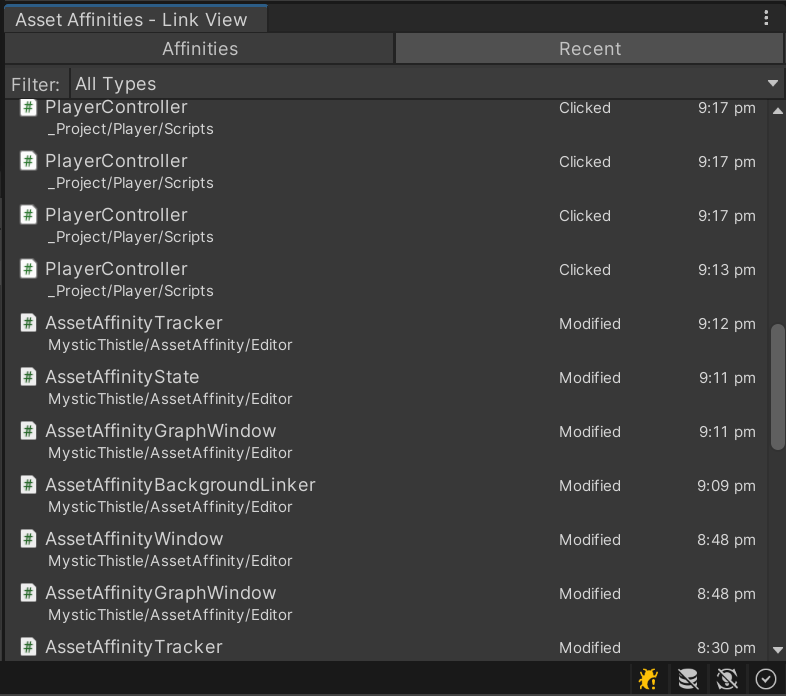
Filtering & Grouping
- Asset Type Filtering: filter the Recent list by asset type using the multi-select dropdown.
Activities are grouped by relative date, and you can expand or collapse each group by clicking its title.
Graph View
In addition to being a workflow enhancer, you can use Graph View to see the hierarchical graph of related files in more of an architecture or producer capacity.
This view can help you spot tight coupling, asset bottlenecks, hidden dependencies, or even what's usually required to work on, for example, a new Weapon prefab.
Depth Slider
By default you will see only the assets linked to your current Project window selection. Increasing Depth shows the additional context of those links, up to 5 levels deep. Increasing depth raises CPU usage, especially in real-time mode.
Filter Slider
You can filter out Nodes which have less Affinity strength than your chosen amount. This may help you view stronger, more recent workflows and habits. The slider goes from 0% to 50%.
Hovering a Node
Hovering a node highlights its links, which is useful for visual analysis when Depth is set higher than 1.
Real-Time Mode
Graph View can have real-time mode enabled or disabled. Real-time mode presents a few settings in an overlay that let the graph's nodes react to one another. These settings are useful when there are many nodes and the layout doesn't yet suit you. Adjust them until every node sits where you want it.
Manually repositioning a node locks it in place, ignoring real-time from that point on, so you can still arrange things how you like during real-time mode.
Frame All
The Frame All button auto-centres and scales the current view to encapsulate all nodes.
Node Context Menu (Right-Click)
Right-clicking a node opens a context menu with quick actions for that node, mirroring the quick actions available from the Affinity tab.
Support
There are a variety of ways to contact me regarding this asset, whether it's an issue with your particular project, with the asset itself, if you're seeking advice, or if you have a request for changes or new features.
Join our Discord